


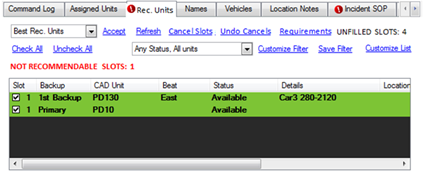
Run Cards recommend units to respond to a CFS based on the Location and Incident Code of the CFS. Recommended units will display on the Rec. Units tab on the CFS.
· System Admin > CAD > Run Cards
· Already configured Run Cards will display in the list and can be edited by double clicking or deleted by highlighting blue and selecting delete on the keyboard
o Note: You can update, create, or delete run cards by exporting and importing a Comma Separated Value (.csv) file using the Menu options listed on the left. This makes it easier to modify run card attributes such as responder requirements, map layers, or incident codes on multiple run cards at once.
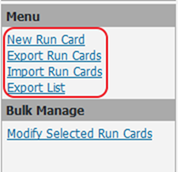
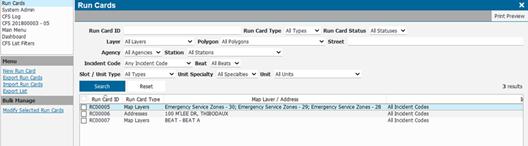
· Select New Run Card
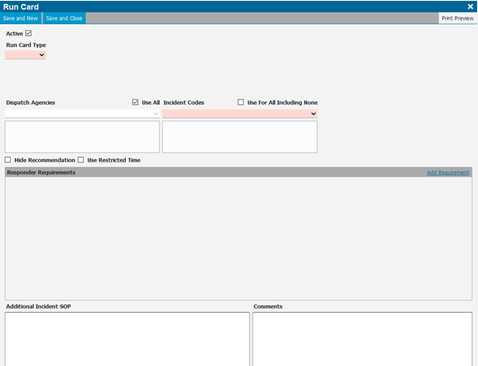
· Active - Check box to enable the run card to be used on CFS for units
o Note: It is recommended to leave this unchecked until your agency is ready for this card to be considered for unit recommendation
· Run Card Type - Map Layers or Addresses
o Layers / Polygons represent defined areas on the map
o Addresses are used when a specific location requires an exception to the normal recommended response e.g. a tall building might require a ladder truck instead of a regular fire engine
· Incident Codes - defines the incident codes connected to the run card
o Check Use All to use all incident codes
· Use Restricted Time - restricts the run card to only be applicable for certain times ranges
o e.g. two law enforcement units are needed on weekends when there is an assault reported downtown
· Tie Breaker - defines what criteria should be used if there is a tie between multiple units to be recommended to a CFS
o Longest Inactivity - in the event of a tie, the unit with the longest inactivity from responding to a CFS will be recommended.
· Responder Requirements - defines the recommended units
o Select Add Requirement
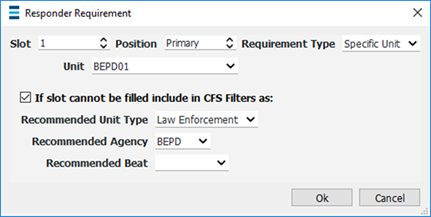
§ Slot - Defines the primary response and the backups
· Number of slots on a run card = the number of units that will be recommended
§ Position - Defines the backup order within the slot
· Primary, 1st Backup, 2nd Backup, etc.
§ Requirement Type - Defines the unit type that will be tied to the slot and is only configurable if the Position = Primary
· If specific is selected, a required Unit dropdown will be presented
· If generic is selected, the following options are presented:
o Unit Type - Fire, Law Enforcement, Medical, etc.
o Agency/Station - Individual Stations or Any Station
o Beat - Relates to the beat currently assigned to the Unit by dispatch
o Specialties - Specialties(s) assigned to a CAD Unit
· If slot cannot be filled - Filling out the sections listed in the window shot above will allow CFS using Recommended Agency or Unit to populate a pending CFS List, calls for service will still be presented on the filter even if there isn't a unit available to recommend.
· Responder Requirements Example Shown Below
o Four slots will recommend four units.
o Slot one will recommend Law Enforcement Unit 291A. If the specific unit is not available for recommendation, then the run card will recommend the specific unit called 291J.
o Slot two will recommend any fire unit associated with the Andover fire department with a ladder truck specialty.
o Slot three will recommend MEDI1 unit. If the specific unit is not available for recommendation, then the run card will recommend any medical unit from any station and the medical unit does not have to have any unit specialties.
o Slot four will recommend any emergency management unit with crisis negotiation specialties. If there no units available for recommendation with those specialties, then the run card will recommend a specific unit, Unit 5EM1.
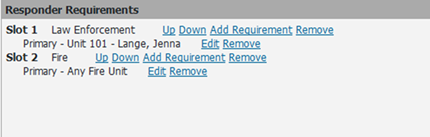
o Note: For customers using AVL, when a recommendation has multiple units that may fill the requirement, the system will ultimately recommend the unit that has the quickest path to the CFS
· Additional Incident SOP: Adds specific standard operating procedures to the run card
§ Displays on the Incident SOP tab of the CFS window
· Comments - Add additional comments if necessary
Plot Units on Map
If your agency wants the ability to use the Quickest Path, Longest inactivity tie breaker setting when configuring run cards, the global setting plot_units_from_location = True. You will also need to configure which Unit Statuses by agency to set Display on Map = Yes. Lastly, you will need to ensure that CAD Units are assigned a verifiable location.