


CFS List Filters allows an administrator to create specific filters for the users on the CAD CFS List window. To view the CAD CFS List window, go to CFS Log > New CAD Window > CAD CFS List.
Note: If you want the users to create their own CFS List Filters, then contact CentralSquare Technologies to set the global setting allow_user_configurable_cad = True.
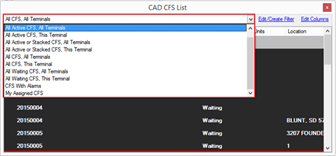
1. Navigate to System Admin > CAD > CFS List Filters. Already configured CFS List Filters will display in the list and can be edited by double-clicking them or deleted by highlighting blue and selecting Delete on the keyboard.
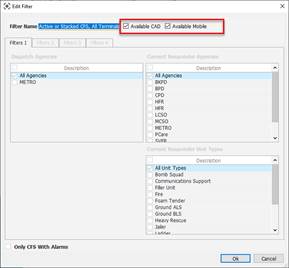
Note: Additionally, each CFS List Filter can be double clicked on, on the top right side of the displayed window check boxes can be selected to determine where this filter should or should not display (i.e., available in CAD or available in Mobile CAD).
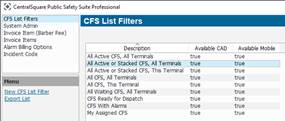
2. Select New CFS List Filter.
● Filter Name: Provide a name for the filter recognizable to all users
● Available CFS Filters:
● Filters 1 Tab
o Dispatch Agencies, Current Responder Agencies, Current Responder Unit Types, Ready for Dispatch
● Filters 2 Tab
o Dispatchers, Statuses, Terminals
● Filters 3 Tab
o Priorities, Beats, Zones
● Filters 4 Tab
o Recommended Agencies, Recommended Unit Types, Recommended Slot Types