


Verify you are set up as ArcGIS Engine (Single Use)
1. Navigate to Windows Start Menu
2. Locate ArcGIS Program
3. Select Engine
4. Select ArcGIS Engine Single Use
5. Select Authorize Now
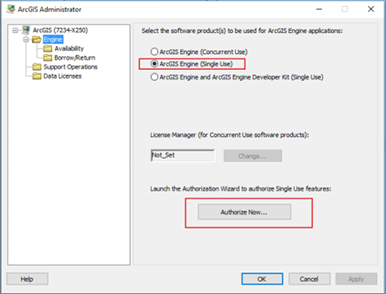
6. Select the Third Option: I have received an authorization file and am now ready to finish the authorization process
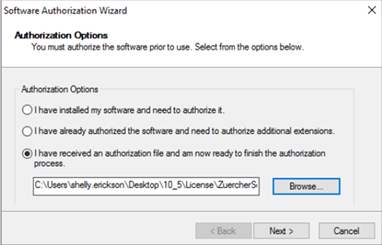
7. Select Browse.
8. Navigate back to the 10_5 and select the License folder.
9. Double click on the ZurecherSoftware_EngineRuntime101 file.
10. Click Next.
11. This will prompt you for a password.
a. The Password is located in the License folder on the PS Pro Suite Share Drive in a file named Key.
b. Double click on the Key file and type or paste the contents into the password field.
c. Select OK.
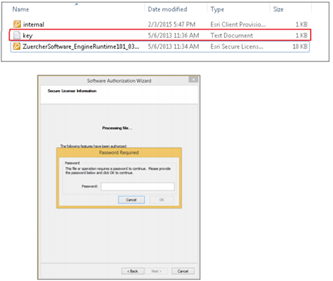
12. When the correct password is entered you will see the following page.
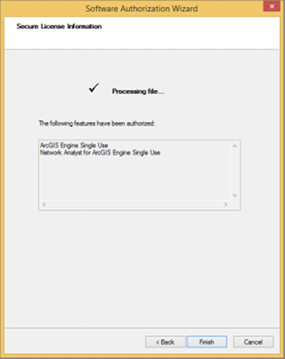
13. Click Finish to complete the license authorization