


Nearest Points is a configurable window that allows for identifying which information to pull off of map layers and to include on the CFS window. Examples may include: Fire Hydrants, Mile Markers, and or Webcams.
Note: Items to configure in this list are dependent on your PS Pro Suite system having a Map Server and map layers for the information you want to use.
1. Navigate to System Admin > CAD > Nearest Points.
2. Select New Nearest Point in the Menu pane.
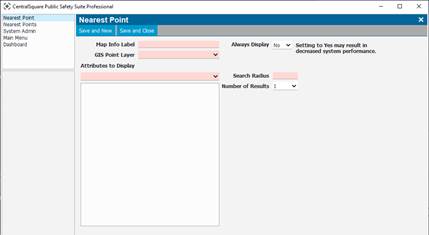
3. Enter a descriptive Map Info Label.
4. Select which GIS Point Layer to reference.
5. Choose up to three attribute fields to be displayed for each point.
6. Decide if information about this nearest point will always be displayed or only on demand by selecting Find Nearest.
Warning: Setting multiple points to always display may reduce system performance.
7. Enter the radius (in feet) to be searched for this point from the CFS Address and how many points to show information for if more than one is found. Information about the nearest point will always be listed first.
8. Select Save and Close. The next time a verified address is used on a CFS this information will be displayed.